
The form controls available OOTB for model-driven apps have evolved so much in the 15 years I have been working with Dynamics CE.
- Controls allow the app user to visualize data within the table columns and/or enable interaction
- Controls provide a more user-friendly experience within the app
- Most controls are configured for a field on a form, but some controls can be configured for the table
This post will be the first in a series where I share my favorites. Enjoy!
Grid controls
Grid controls can be configured for:
- Table – all views for the table will use the grid control
- Form – subgrids added to a form will use a grid control
Subgrid
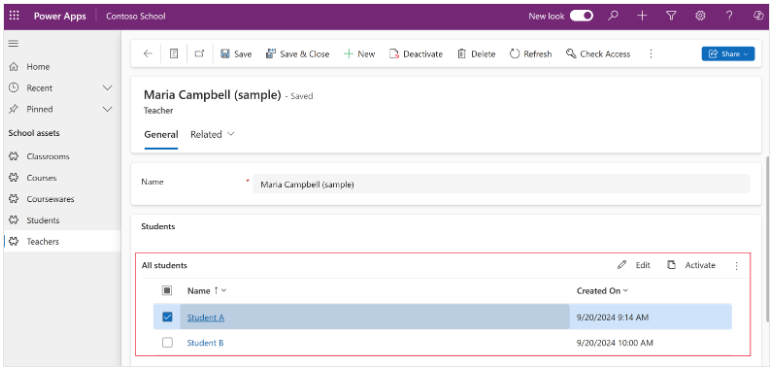
I think I’ve used the read-only subgrid on almost every form to display a list of related records. The user can view, open, and add new records from the subgrid (depending on their level of access). I often find myself adding custom buttons to the subgrid command bar to facilitate the need for on-demand automation.
Here is a link to where you can find the different configurable properties available for a subgrid component.
One thing to note is that the Use available space property does not have an effect in the Unified Interface. It only works with the legacy web client.
Editable grid
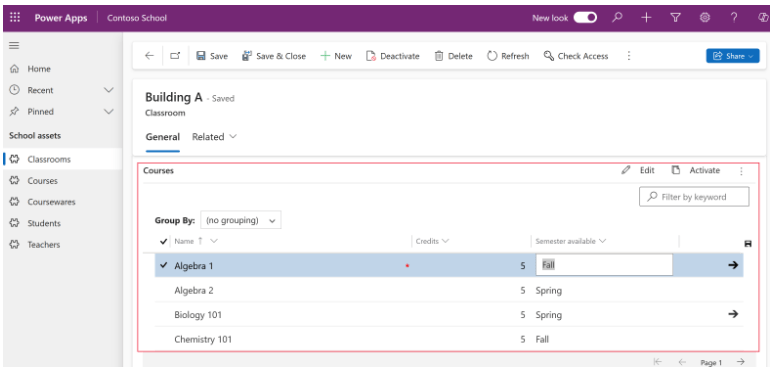
This was the next evolution of the subgrid control. Hey, what if we make it editable?! Yes! Like when someone is working in Excel and can update the values within each cell. It was great, because users could make edits to multiple rows and then click Save once to save all of the updates. Big time saver.
It definitely has some limitations, but if it meets the needs of your requirements, then it’s a great option. One key limitation to note is Business rules work only if conditional column is a column on the grid.
Power Apps grid control
This is the latest and greatest! Key features of this control include:
- Infinite scroll – Users can scroll indefinitely through data; no page boundaries. Users can select up to 1,000 rows at a time.
- Inline editing – By default, it is read-only, but it can be configured to be editable.
- Nested grids – Users can expand a row to see a subgrid of related records. Multiple rows in the grid can be expanded simultaneously
- Grouping – Users can group data based on a single column. Each group is collapsed initially, but users can expand and collapse the groups as desired.
- Aggregation – For each numeric column, users can choose to see the total, minimum value, maximum value, or average of values from that column.

It has so many cool features! I love how it brings some color to the UI. Here is a link to where you can find all of the configuration options listed.
Like with every good thing, it has it’s known issues and limitations too, so be sure you read up on that before deciding that this control will meet your requirements.
 The Low-Code Logbook
Leave a comment