
Everybody say “YAYYYY!!!!”
We will no longer have to add customizations to only show the last 4 digits of a SSN or to only show the month & day of a birthdate. However, this is still in preview.

What is data masking?
Data masking helps protect sensitive information during customer interactions and prevents data leaks. Data masking, also known as de-identification or obfuscation, replaces sensitive data with masked strings. The masked strings ensure that the original, unmasked values remain hidden. Only authorized users can read the unmasked values—one record at a time. In the context of customer interactions, frontline support users are prevented from exposing sensitive information like social security numbers.
How does masking work?
- You create masking rules to set how sensitive information should be masked.
- These rules use regular expressions to identify specific patterns.
- These patterns are detected and the sensitive columns are replaced with masked characters when the row is retrieved.
Where do I create masking rules?
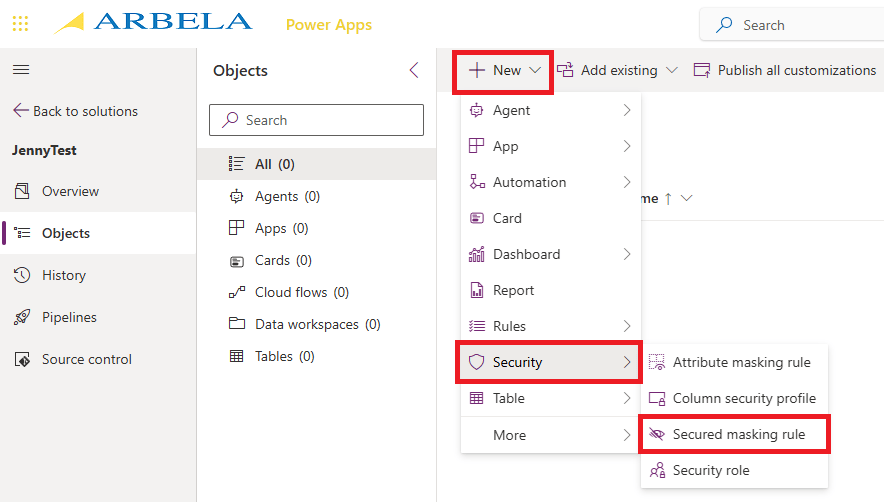
- Create or open a solution
- Click +New, and select Security > Secured masking rule
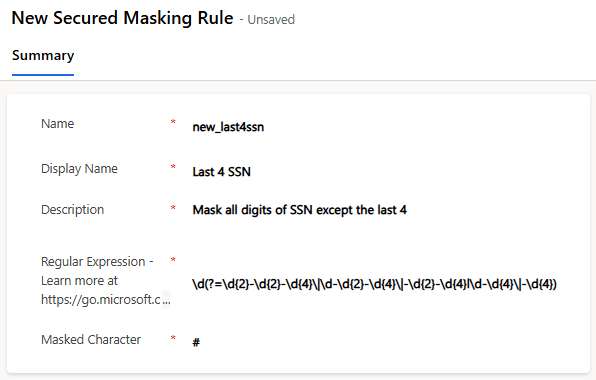
- When the New Masking Rule form opens, enter a rule Name
- Enter a Display Name and Description
- Enter a Regular Expression, chosen from the Regular Expression Language
- Enter a Masked Character
- Click Save
How can I test my masking rules?
You can enter original values in the Enter Plain Text Test Data and Enter Rich Text Test Data columns. On save, the Masked Plain Text test data and Masked Rich Text test data should display on the screen.
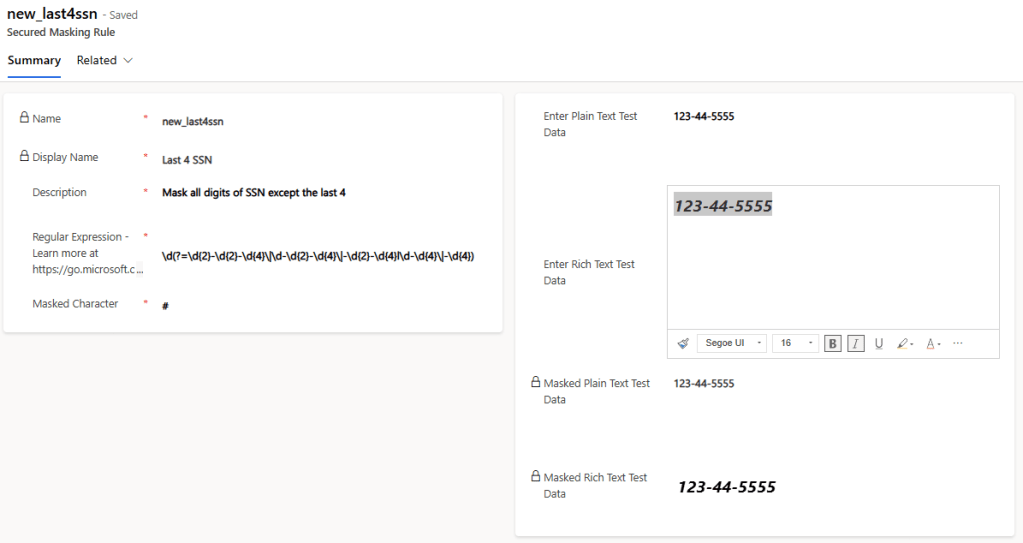
This is a great way for you to validate your expression is working as expected.
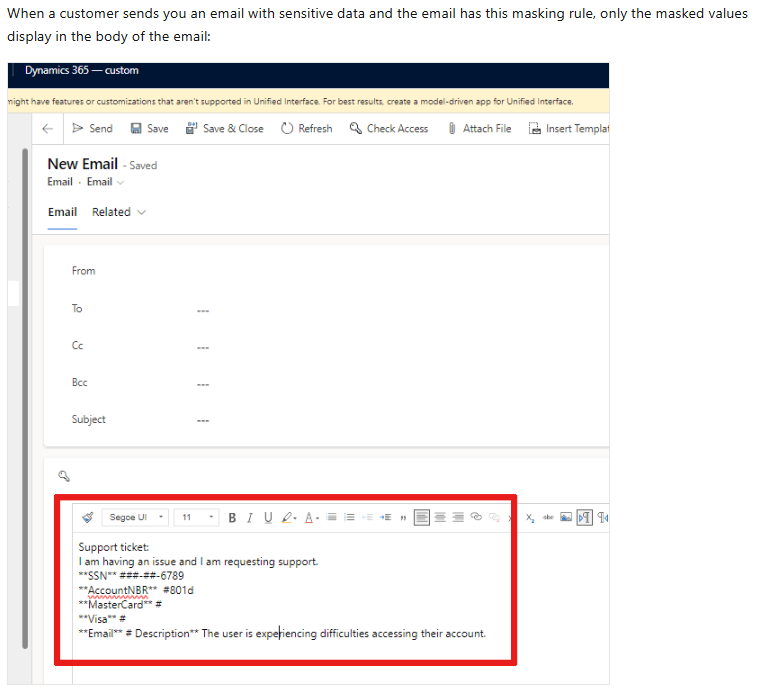
Can you show me some examples?

How do I add a masking rule to a column?
- Create or open a solution
- Add the existing column
- Open the column to edit it
- Expand the Advanced options
- Check the box for Enable column security
- Select a Masking Rule from the dropdown
- Save

Additional resources
- Mask sensitive data fields with column-level security
- Grant permissions to a secured column with a masking rule
- View all columns that have a masking rule
- How are masked columns displayed?
- Options for viewing masked columns
Known limitations/Not supported

 The Low-Code Logbook
Leave a comment