
Did you know that D365 Sales comes with out-of-the-box customer address management functionality?
The Account and Contact tables come with OOTB Address columns:
- Account
- Address 1
- Address 2
- Contact
- Address 1
- Address 2
- Address 3
You can add these fields to the form and label them with whatever is appropriate for your use case. In my example, I have labeled them:
- Account Address 1 = Primary Address
- Account Address 2 = Bill To Address
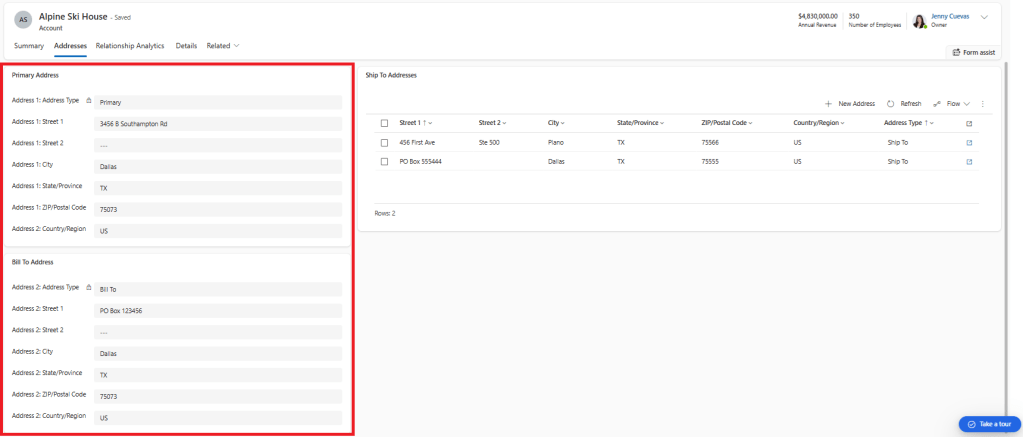
When I enter and save data in these OOTB Address 1 and Address 2 fields, a record is automatically created in the OOTB Address table with Address Numbers 1 and 2. If I update the data in those fields, those Address rows are automatically updated. This is native D365 functionality.
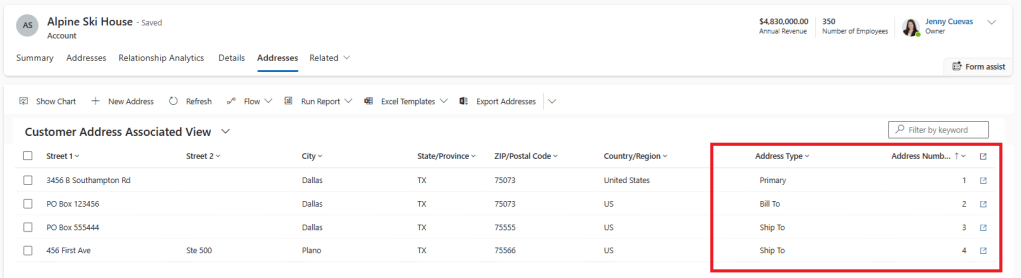
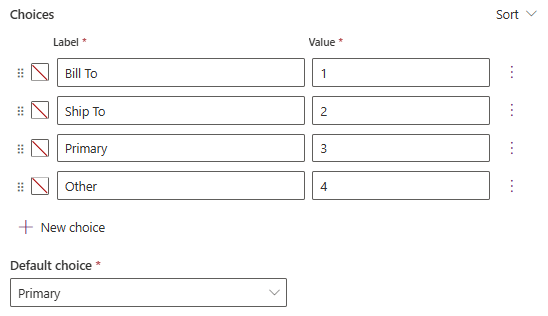
I am able to configure the Address Type choices and defaults. In my example, here is what I configured:
- Account: Address 1 Address Type
- Account: Address 2 Address Type
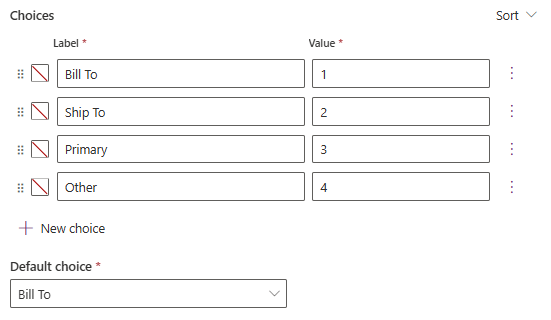
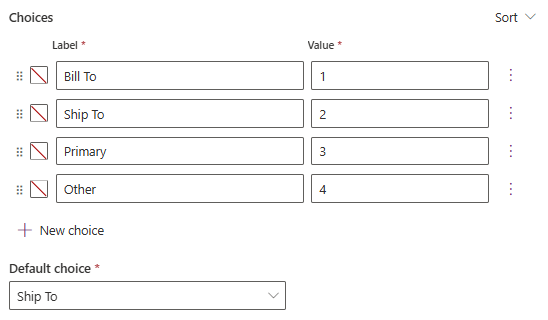
These didn’t all have the same Address Type choices OOTB, but once I configured them that way, they mapped from Account to Address beautifully without having to configure mappings. Just ensure your Label and Value are consistent.
The reason I set the Address table’s Address Type default to “Ship To” is because in my example, the users need the ability to add multiple Ship To addresses. When the user adds a new address from the subgrid, I want the Address Type “Ship To” to be automatically populated on the new Address record.
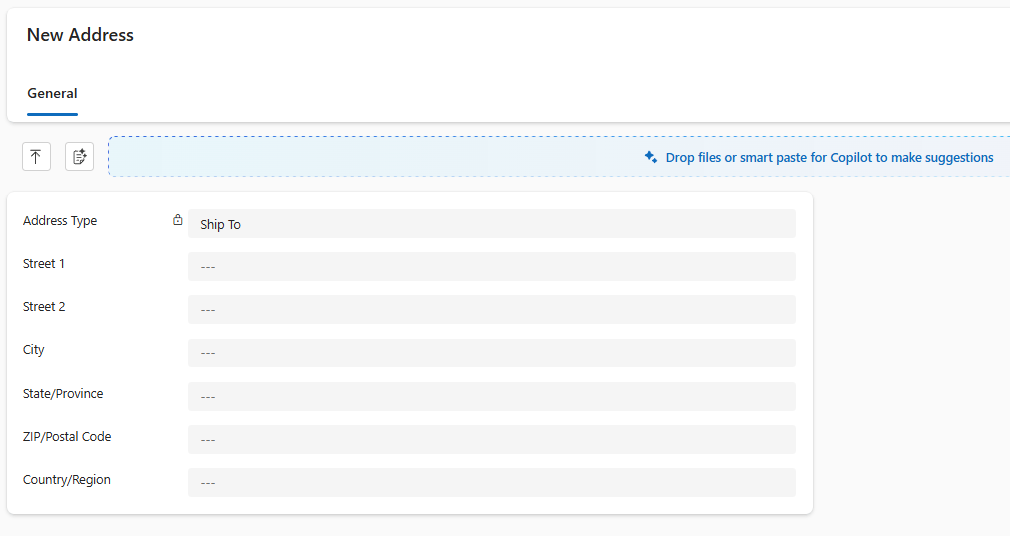
There are a few limitations with the Address table that we ran across in our development.
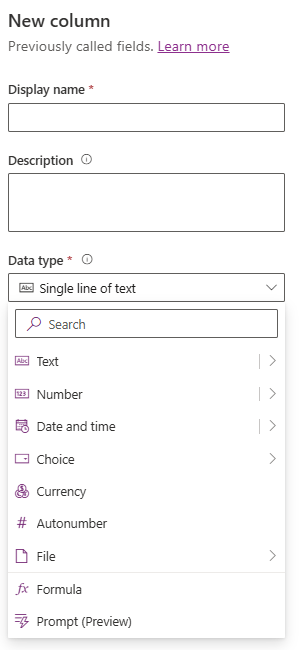
- If you try to add a new column to the Address table, you’ll notice that adding a Lookup field is not an option.
- The Address (CustomerAddress) table is a system-managed Dataverse table with restricted schema capabilities. Microsoft does not allow custom relationships or lookup columns to be added, which is why Lookup is not available when adding a new column.
- My colleague tried adding an entity level Business Rule that would set the Address Type based on the Address Number; it didn’t work.
- Entity-level business rules do not work on the Address (CustomerAddress) table because it is a system-managed table whose records are created and updated through internal Dataverse synchronization processes, which bypass the business rule execution pipeline.
- My colleague also tried creating a real-time workflow that on create of an Address record would set the Address Type based on the Address Number; it didn’t work either.
- Real‑time workflows do not work on the Address (CustomerAddress) table because Address records are created and updated through internal Dataverse synchronization logic that bypasses the synchronous (real‑time) workflow execution pipeline.
The failed attempts with BR and WF are what led us to the solution described herein — setting the choice and default values.
In summary, the OOTB Address table is useful, but you have to learn to work within the confines of its restrictions.
 The Low-Code Logbook
Leave a comment